
A desktop app that helps find clues in aerial footage both post-flight and as it is being live-streamed from the drone.
Get for Mac/Windows
Quick start guide
Common questions
NO LONGER UPDATED
Contents
→ Activation instructions for Eagle Eyes Scan 1.1.2 and up
→ Activation instructions for Eagle Eyes Scan 0.5.3
Activation instructions for Eagle Eyes Scan 1.1.2 and up
Follow the activation instructions as shown in the first few minutes of this video:
Activation instructions for Eagle Eyes Scan 0.5.3
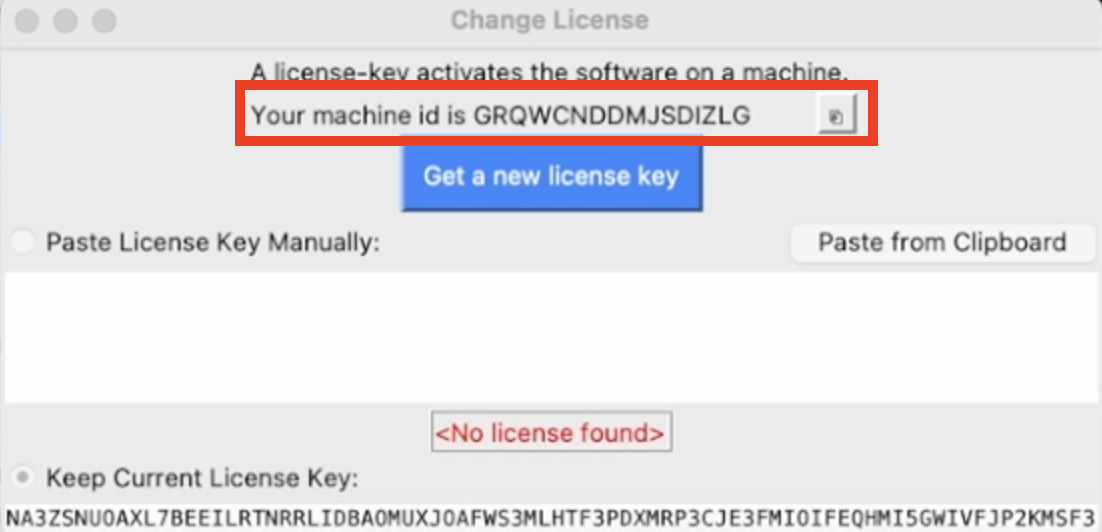
To activate your Eagle Eyes License for Eagle Eyes Scan on your laptop follow the instructions outlined in this video:
Please note:
Screenshot from Scan license activation window:
Screenshot from the licensing flow on the Eagle Eyes account page:
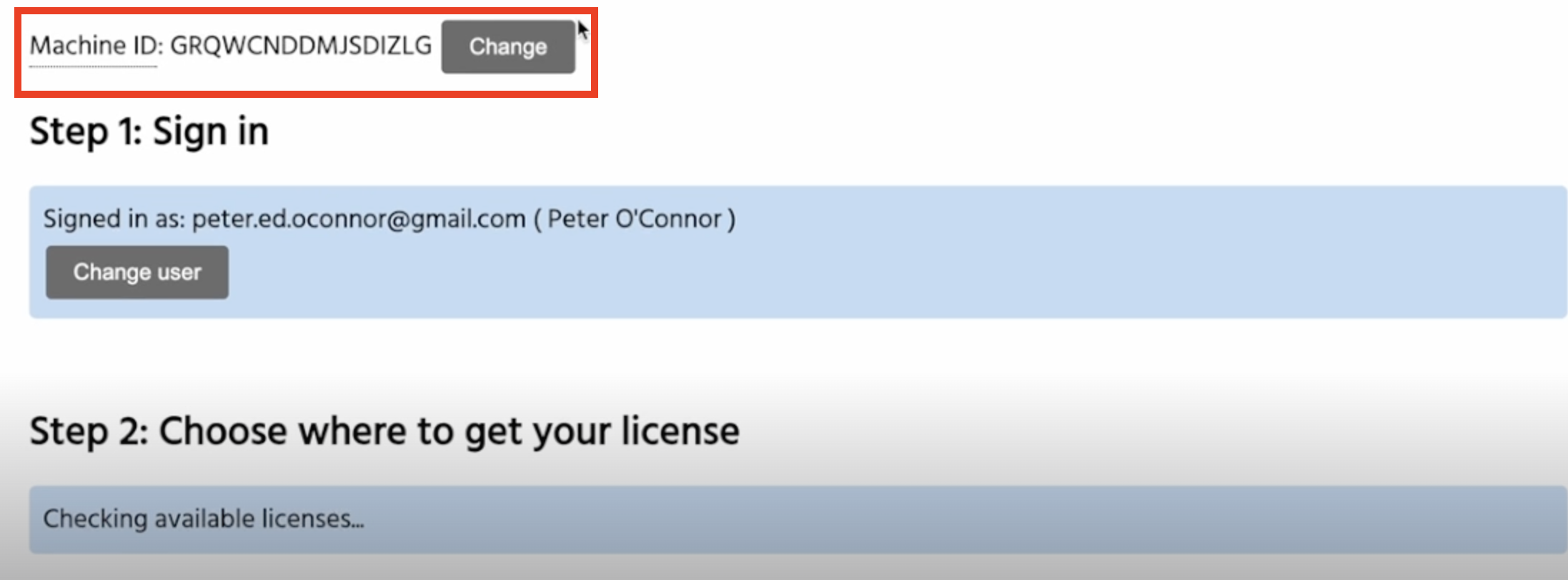
At the bottom of the license activation web page, copy the resulting key (200+ characters) back into Scan via "paste from clipboard".
For more information see the Eagle Eyes Scan user manual.
The Eagle Eyes computer vision system enables real-time detections on your live drone feed. This means you can look back over areas you've flown and review all the images that triggered a detection helping hone in on clues identifying things that might otherwise be overlooked. The detector can be run on recorded footage from any drone, any image or any video file. For more information on how the detector works, see here.
The intended way to review detections after the fact is by running the detector on recorded footage using our desktop software Eagle Eyes Scan. The following video outlines the recommended workflow for reviewing recorded images after a drone flight in Eagle Eyes Scan. Note that the same workflow applies to recorded video files as well.
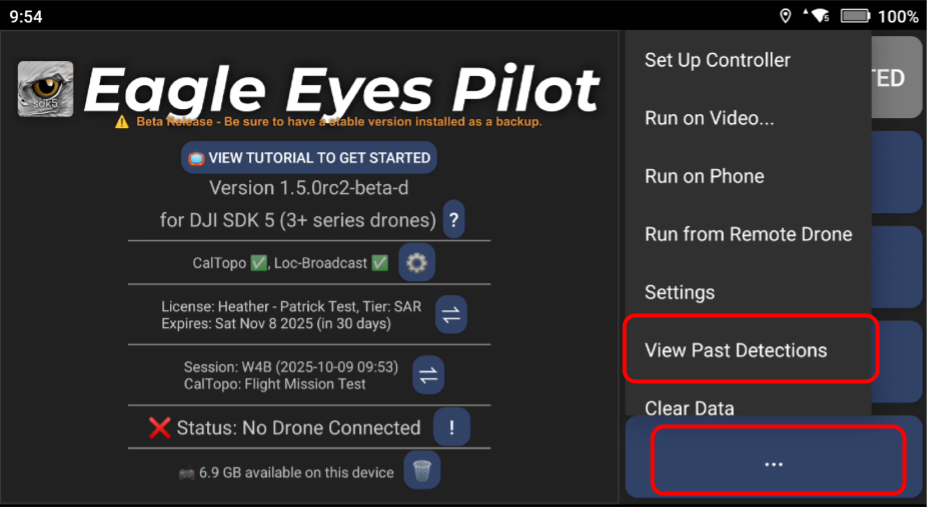
It is also possible to review past detections directly in Eagle Eyes Pilot, although this is not the recommended workflow. To do this, either tap the three dots (⋯) button on the bottom right of the main landing screen in Eagle Eyes Pilot. Then select View Past Detections:
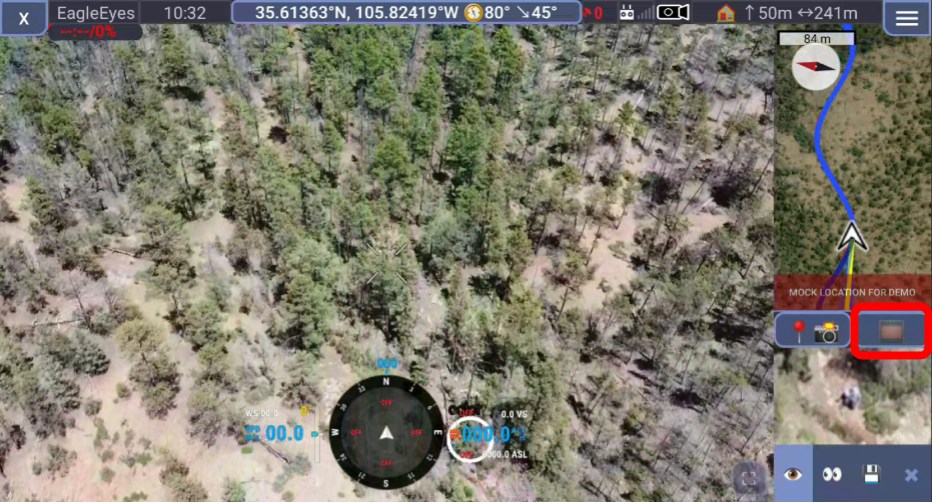
Or access the detections view from within the piloting screen by long-pressing the film roll icon next to the camera photo point marker button:
That will bring you to the detections page in Eagle Eyes Pilot:
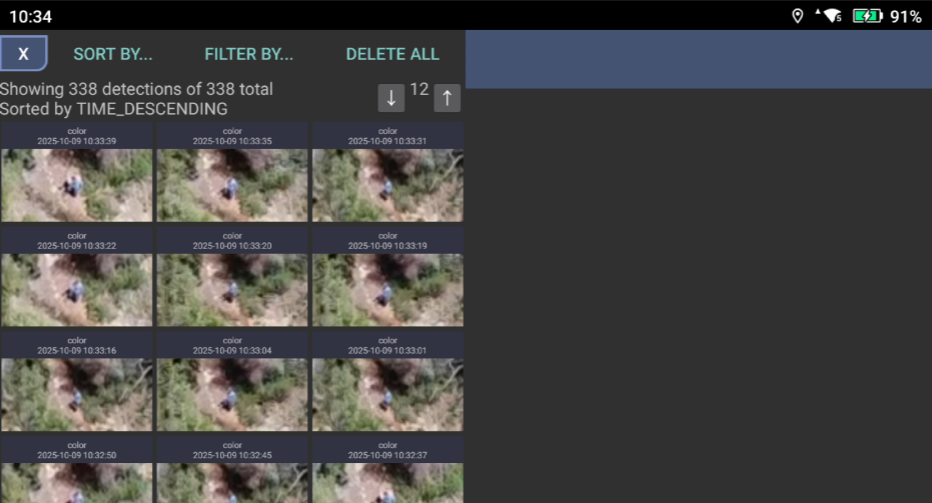
From the detections page, you can filter results by session or remove all filters to display all detections stored on your device from previous flights.
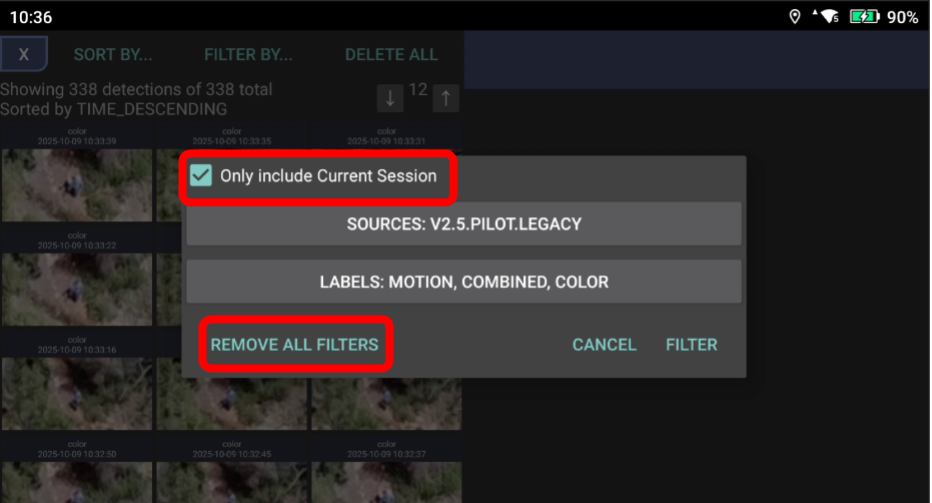
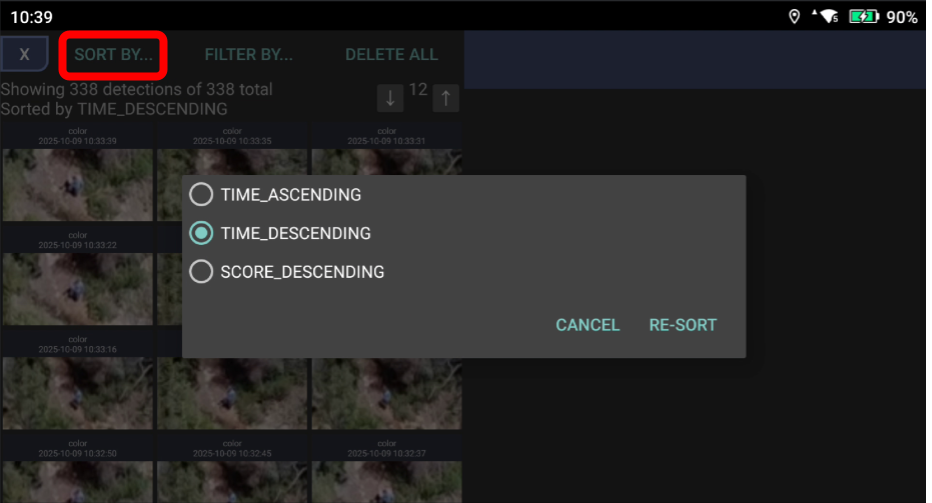
Note that filtering detections by session will reset if you shut down the app and restart. Detections can also be sorted by time and detection score.
Again, while detection review in Eagle Eyes Pilot is available, the recommended workflow for reviewing, analyzing, and exporting detections remains through Eagle Eyes Scan on desktop. Development is underway to expand and improve in-app review options in future releases.
The following video shows how to toggle the on-screen display overlays on and off in both DJI Pilot 2 and Eagle Eyes Pilot to get a clean HDMI output, for feeding into Eagle Eyes Scan or an external monitor.
In DJI Pilot 2:
In Eagle Eyes Pilot:
When Clean HDMI Output is enabled, the video signal coming from your RC Pro controller will be free of any on-screen display elements, giving you a pure video feed ready for use in Eagle Eyes Scan or any HDMI display setup.
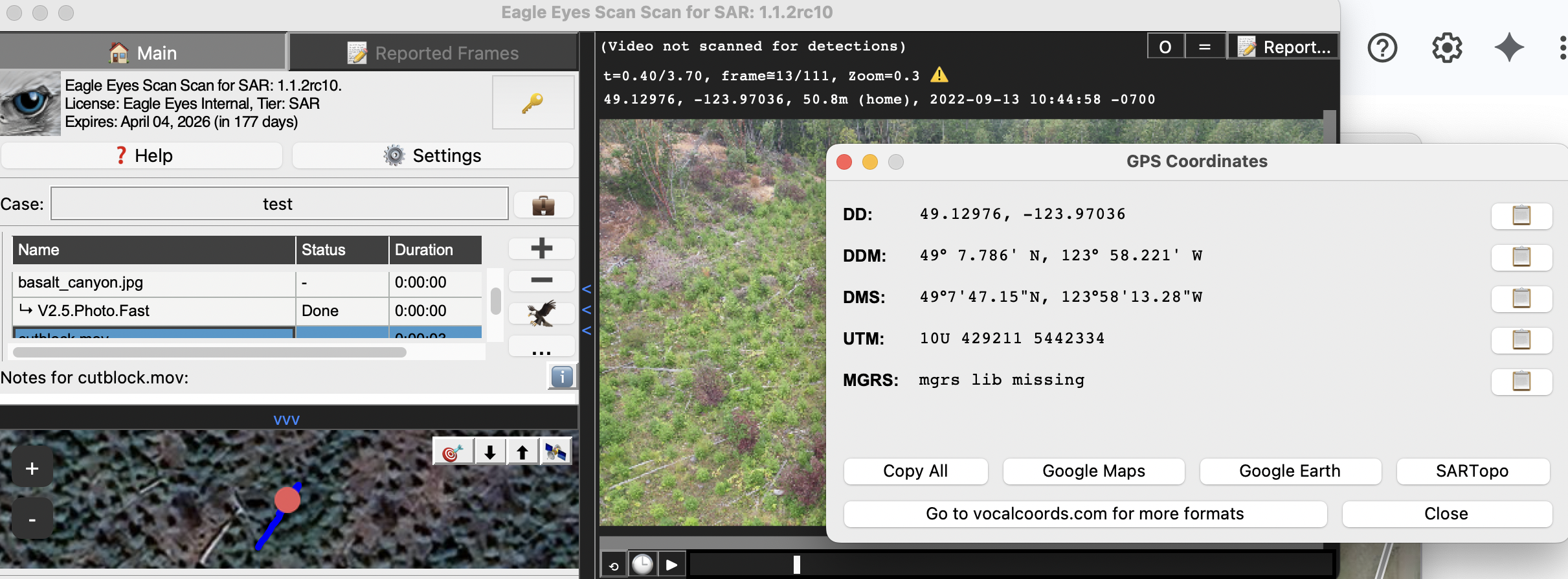
Eagle Eyes Scan allows you to see the coordinates for each of the detections. The coordinates shown correspond to the drone's position at the time the image associated with each detection was captured.
How you access these coordinates depends on how your data is being ingested:
Processing recorded DJI MP4 files:
If you're processing MP4 files from DJI drones, make sure "Subtitle" recording is turned on in DJI Pilot 2 (as shown below). This creates .SRT files alongside the video. When importing your videos into Eagle Eyes Scan, select both the MP4 and matching SRT files this will enable per-frame GPS coordinates.
Running live detection over HDMI:
If you're running live detection via an HDMI cable, make sure your laptop and drone controller are on the same Wi-Fi network. This allows Eagle Eyes Scan to pick up live drone coordinates during the livestream.
In the end, you should see something like this, where clicking the coordinates bar opens a dialog that lets you copy coordinates in various formats.
Visit our comprehensive FAQ page for all questions and answers.
View All FAQs